 A free app for your Mac
 Cert Lab.
Proper HTTPS for everything on your home network, signed by a certificate authority that lives in 1Password.
brew install --cask viaductindustries/tap/cert-lab 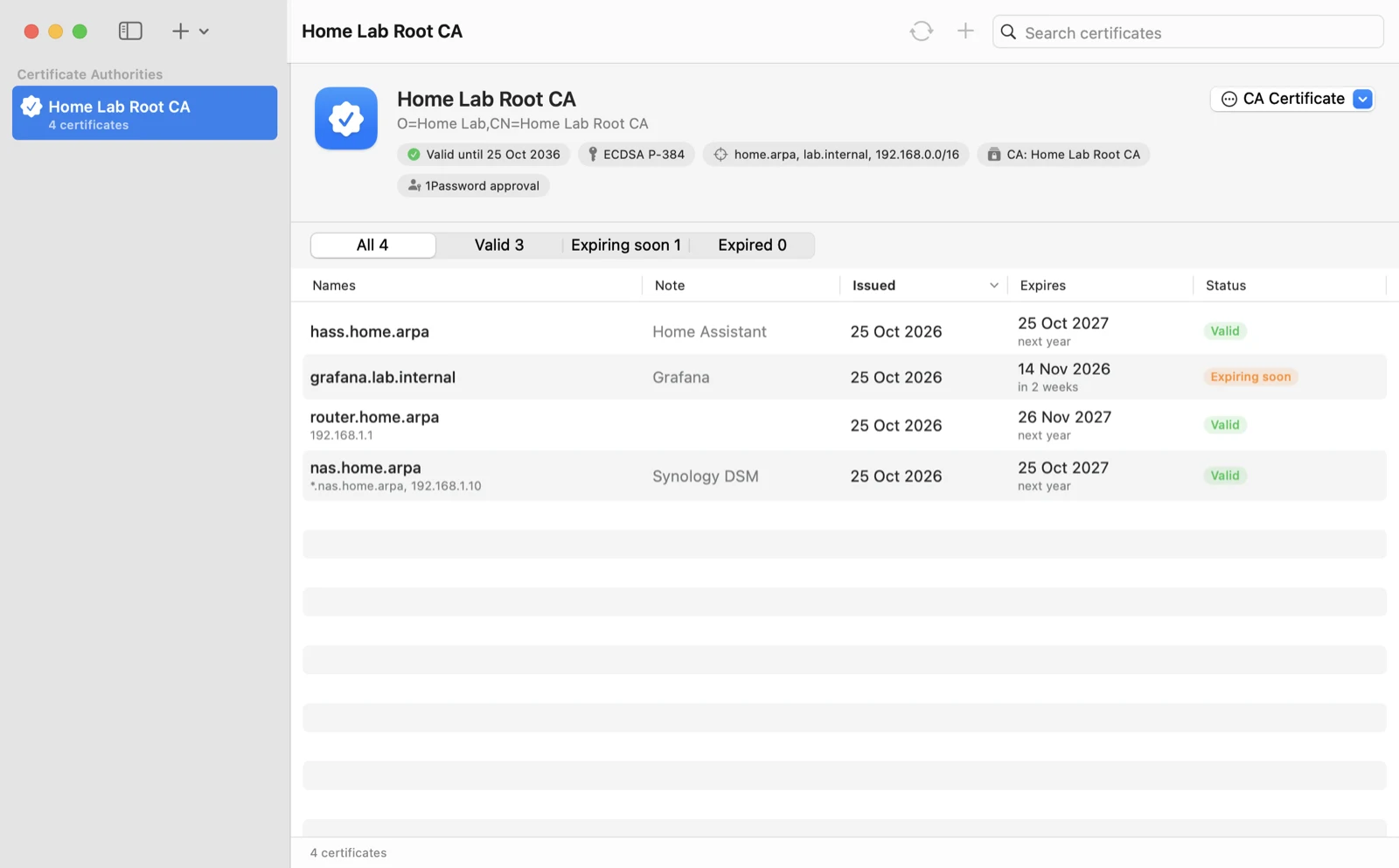
No more clicking through warnings
Your NAS, router and Home Assistant all serve HTTPS with certificates nobody trusts, so every browser greets them with a warning. You click through it so often you stop reading it — which is exactly the habit that warning is there to stop.
Public certificate authorities can't help with names like
nas.home.arpa or addresses like
192.168.1.10. Running your own CA can, but it usually
means a folder of half-remembered openssl commands and a
CA key sitting in your home directory, able to vouch for any website
on every device that trusts it.
Cert Lab handles the fiddly part and keeps the key safe. You trust one CA certificate on your devices once, then issue certificates for anything on your network in seconds. The CA lives in its own 1Password vault, so nothing gets signed without 1Password's approval.
Set up once, then issue whenever
-
Add a CA
Create one, import one, or link one you set up on another Mac. Each CA gets its own 1Password vault.
-
Trust it
Export the CA certificate and install it on the devices and browsers that should trust your certificates. You only do this once.
-
Issue certificates
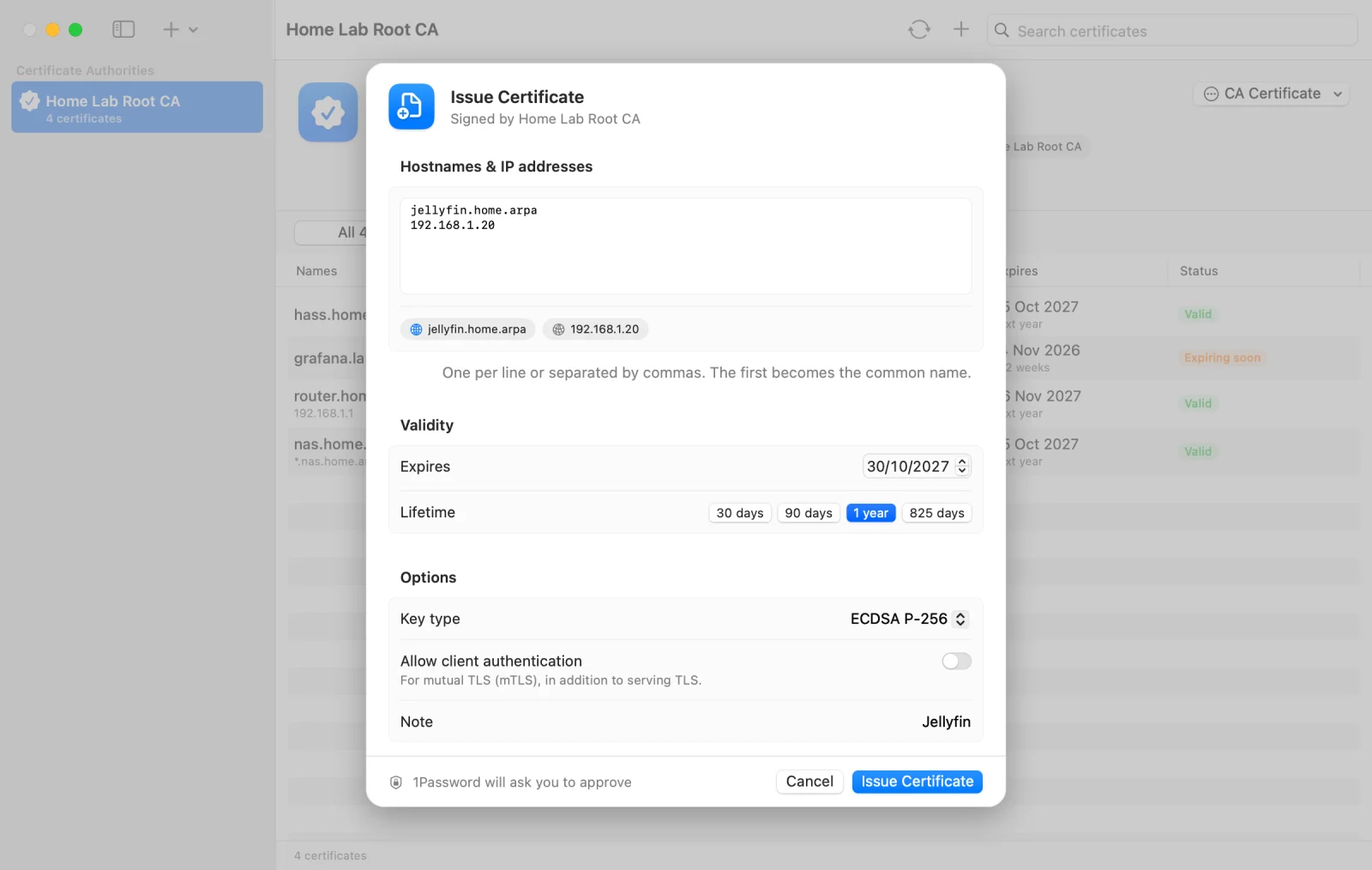
Press ⌘N, enter the names, and approve the request in 1Password. Save the key before you close the result.
A small app that does one job carefully
Create or import a CA
Generate a new ECDSA or RSA certificate authority, or bring an existing certificate and key — PKCS#8, SEC1, PKCS#1 or encrypted PKCS#8.
Certificates in seconds
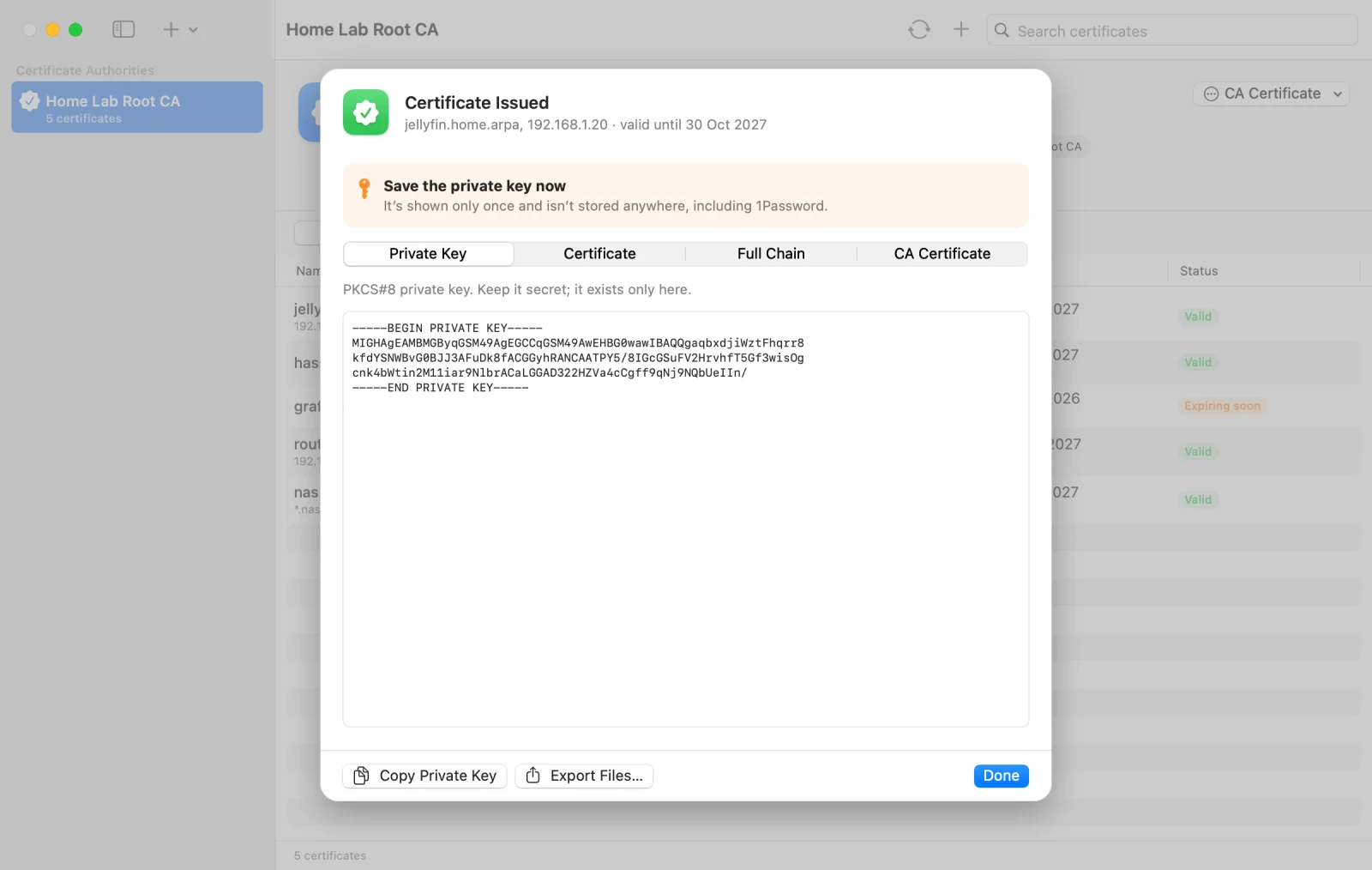
Type the hostnames and IP addresses, pick an expiry date, and get back the key, the certificate, the full chain and the CA certificate. Copy them or save them as files.
Keys are shown once
The private key for each certificate is never stored — not on disk, not in 1Password, not in the log. Save it, use it, and it's gone.
A history that syncs
A searchable log of everything each CA has issued, showing what's valid, expiring soon or expired. It syncs through 1Password, so every Mac sees the same list.
Name constraints
Optionally limit a CA to your own domains and ranges, like home.arpa and 192.168.0.0/16, so trusting it can't be abused for anyone else's websites.
No lock-in
Everything is stored in standard formats that work with openssl. If you stop using Cert Lab, your CA and certificates keep working.
Anything on your network with a web page
Home Assistant
hass.home.arpaOpen your dashboard over HTTPS with no warning, and use the browser features that only work on a secure connection.
Your NAS
nas.home.arpaImport the key and certificate into Synology DSM, TrueNAS or Unraid, and stop clicking through the warning every time you log in.
Router and network gear
router.home.arpa · 192.168.1.1Certificates can include IP addresses as well as names, so the admin page is trusted however you reach it.
Self-hosted apps
grafana.lab.internalGrafana, Proxmox, Jellyfin, Portainer — anything with a web interface and a place to put a certificate.
A reverse proxy
*.lab.internalIssue one wildcard certificate for Caddy, nginx or Traefik and put every service behind it.
Client certificates
clientAuthAdd client authentication to a certificate for mutual TLS — to lock down an internal API or an MQTT broker.
Requirements
- A Mac running macOS 14 Sonoma or later — Apple silicon or Intel.
- The 1Password desktop app, with Settings › Developer › Integrate with 1Password CLI turned on.
- The 1Password CLI, which you can install with Homebrew too.
Install with Homebrew
Install the 1Password CLI, if you don't have it:
brew install 1password-cli Then install Cert Lab from our tap:
brew install --cask viaductindustries/tap/cert-lab To update it later:
brew update
brew upgrade --cask viaductindustries/tap/cert-lab The first time Cert Lab uses 1Password, 1Password asks you to approve it. If anything's not right, Cert Lab › Settings › Test Connection checks the whole setup. Prefer not to use Homebrew? Download the app from GitHub Releases — it's the same build, signed and notarized by Apple — or build it from source.
Deliberately small.
Cert Lab doesn't do revocation, ACME or intermediate CAs. It issues server certificates (and client ones, if you ask) from a CA you control, warns you when a lifetime is longer than Apple devices accept, and gets out of the way. That's the whole job.